Your Email Is Being Read Before You Even Open It — How to Switch Off AI Features Across Every Platform
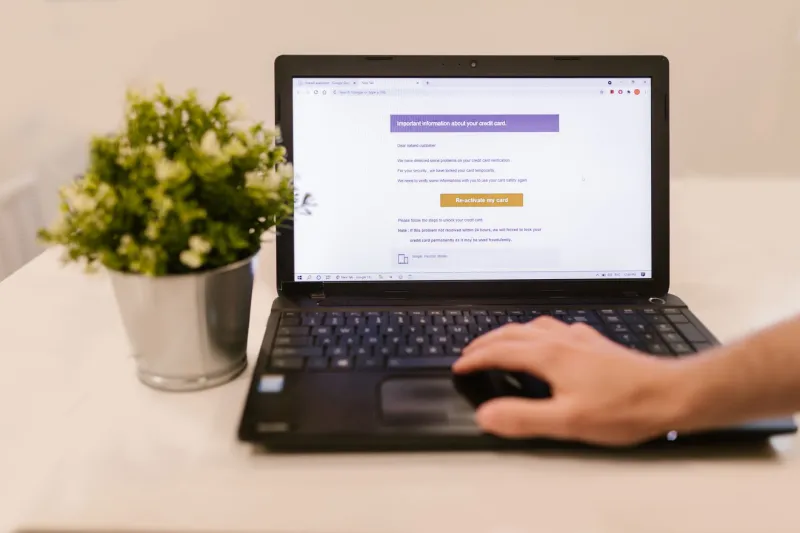
You open an email, and before you've even typed a single character, your email app has already drafted three possible responses sitting at the bottom of the screen. Handy, right? Maybe. But that little trick requires your email provider's AI to have already scanned the message, figured out the context, and generated a response on your behalf.
For a lot of people, that's fine. For others, it's a line they'd rather not cross — especially when the emails in question involve medical stuff, financial details, or just plain private conversations.
Here's the thing: you can turn all of this off. It's not buried that deep, either. This guide walks you through disabling AI-powered email features on Gmail, Outlook, Apple Mail, and a few others — and explains what's actually happening behind the scenes when those features are active.
What "AI Email Features" Actually Means
Before diving into settings, it helps to know what you're actually turning off. The main features to be aware of are:
- Smart Reply — those short suggested responses ("Sounds good!", "Thanks!", "I'll check.") that appear below emails
- Smart Compose — predictive text that finishes your sentences as you type
- Summarization — AI-generated summaries of long email threads
- Priority Inbox / AI sorting — algorithms that decide which emails matter most
- Nudges — reminders to follow up on emails you haven't responded to
All of these require some level of content analysis. How much, and what happens to that data afterward, varies by provider.
Gmail: Turning Off Smart Reply and Smart Compose
Gmail is the most aggressive about surfacing AI features, so let's start here.
On desktop:
- Open Gmail and click the gear icon in the top right corner
- Select See all settings
- Stay on the General tab
- Scroll down to find Smart Compose — toggle it off
- A little further down, find Smart Reply — toggle that off too
- While you're there, look for Nudges (reminders to follow up or reply) and disable those if you want
- Scroll to the bottom and hit Save Changes
On mobile (Android or iPhone):
- Open the Gmail app
- Tap the three-line menu, then go to Settings
- Tap your account name
- Look for Smart Compose and Smart Reply — both have toggles you can switch off
One thing worth noting: Google's privacy documentation states that Smart Compose content is processed to generate suggestions, but Google says this data isn't used to target ads. Whether you take that at face value is up to you.
Outlook: Disabling Suggested Replies and Copilot Features
Microsoft has been rolling out AI features in Outlook under the Copilot umbrella, and the toggle locations depend on which version of Outlook you're using.
Outlook on the web (outlook.com or Microsoft 365):
- Click the gear icon (Settings)
- Search for "Suggested replies" in the settings search bar
- Toggle off Show suggested replies
- If you have a Microsoft 365 subscription with Copilot enabled, look for Copilot settings under Premium features and adjust what's active
Outlook desktop app (Windows):
- Go to File > Options
- Click Mail in the left sidebar
- Scroll to find Replies and Forwards or look for an AI/Copilot section depending on your version
- Uncheck suggested replies if the option is present
Note: Microsoft's Copilot features are more tightly integrated in newer versions and Microsoft 365 business accounts. If you're on a work account, some of these settings may be controlled by your organization's IT admin.
Apple Mail: Smarter Inbox and Predictive Text
Apple Mail on iOS 18 and macOS Sequoia introduced a few AI-driven features including email summaries and priority message sorting.
On iPhone or iPad:
- Go to Settings > Apps > Mail
- Look for Summarize Messages and toggle it off if you don't want AI-generated previews
- To turn off predictive text across the whole device (which affects Mail and every other app): go to Settings > General > Keyboard and toggle off Predictive Text
On Mac:
- Open System Settings > Apple Intelligence & Siri
- From here you can limit what Apple Intelligence features are active
- In Mail specifically, go to Mail > Settings > General and look for any summarization or AI options
Apple's approach differs from Google's in that most processing happens on-device through Apple Intelligence rather than on remote servers — which is a meaningful privacy distinction.
Other Email Clients Worth Knowing About
Yahoo Mail: Open Settings > More Settings > Writing email, and look for Smart Compose options to disable.
Spark (by Readdle): Go to Settings > AI Features and toggle off Smart Reply and AI assistant features.
Hey (by Basecamp): Hey is deliberately minimal with AI features and doesn't use your email content to train models — it's a good option if privacy is a top priority.
ProtonMail: No AI content scanning. Zero-access encryption means even Proton can't read your emails, let alone train AI on them. If you're looking for a privacy-first alternative, this is the most commonly recommended option in the US.
What Happens to Your Data When AI Features Are Active
The short version: your email content is processed by algorithms to generate suggestions. Most major providers claim this data isn't stored long-term or used for advertising purposes specifically. But "processed" still means the text travels beyond your device and gets analyzed.
For most people, the risk is relatively low. But if you're regularly emailing about sensitive topics — healthcare, legal matters, finances, relationships — it's reasonable to want that content to stay between you and the recipient.
The Quickest Win
If you only do one thing after reading this: go into Gmail or Outlook settings right now and flip off Smart Reply. It takes 30 seconds, and you'll immediately stop having your emails pre-summarized by an algorithm. Everything else is optional — but it's good to know the options exist.


