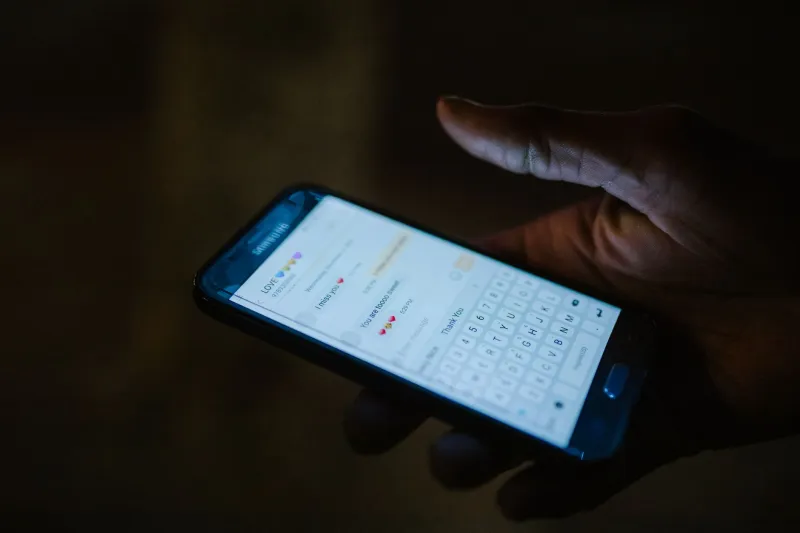
Your Phone Is Trying to Tell You Something — Learn to Actually Speak Its Language

There's a sound your phone makes when a text comes in. A different one for email. Maybe another for a calendar reminder. And then there are the apps that just use whatever default tone they grabbed when you installed them — which, in a lot of cases, sounds exactly like three other apps you have.
The result? You hear a buzz from across the room and you have no idea if it's urgent, irrelevant, or somewhere in between. So you pick up your phone to check. Every time. Dozens of times a day.
That's not a notification system. That's a guessing game.
Here's the thing: your phone is actually capable of communicating with real precision. Different sounds, different vibration patterns, and different alert styles can tell you — without you looking — exactly what's happening and how much it matters. You just have to set it up that way.
What the Default Sounds Are Actually Doing
Out of the box, most phones use a small library of built-in tones and assign them somewhat randomly across apps. Apple's default text tone is "Tri-tone." Android devices vary by manufacturer, but most ship with a generic notification sound that gets applied to almost everything.
Here's the problem: app developers know you're conditioned to respond to certain sounds. Some apps deliberately choose tones that feel urgent — short, sharp, high-pitched sounds that your brain registers as requiring immediate attention. Others mimic the default text message sound so you'll check them the same way you check a message from a real person.
This is not an accident. It's design.
When every app sounds like a text message, your phone has effectively trained you to treat every notification like a text message. Understanding that is the first step toward fixing it.
The Three-Tier Sound System That Actually Works
Instead of assigning sounds randomly, think about notifications in terms of urgency — and give each tier its own distinct audio identity.
Tier 1: Needs your attention right now. Phone calls, direct messages from family, emergency alerts. These should have a sound that's impossible to ignore — something loud, distinct, and different from everything else. You want your brain to immediately recognize this as "stop what you're doing."
Tier 2: Worth checking when you have a moment. Work emails, calendar reminders, replies to things you're actively involved in. A softer, shorter tone works here. Something noticeable but not jarring.
Tier 3: You'll get to it eventually. Social media, news apps, promotional emails, app updates. These probably shouldn't make any sound at all. A silent vibration — or nothing — is the right call for most of these.
The goal is that by the time a notification sound reaches your ears, you already know roughly how much it matters.
How to Set Custom Sounds on iPhone
Apple gives you per-app notification control, which is exactly what you need.
- Go to Settings > Notifications
- Select any app from the list
- Tap Sounds to assign a specific tone
For your most important apps — Messages, Phone — go to Settings > Sounds & Haptics to set ringtones and text tones separately from the rest of your notifications.
Apple also supports custom ringtones and notification sounds purchased through iTunes or created with GarageBand, which gives you a lot of flexibility if the built-in library feels limiting.
Haptics matter too. Under Settings > Sounds & Haptics, you can control whether vibration accompanies sounds. For Tier 2 notifications, consider keeping vibration on but volume low. For Tier 3, turn off both.
How to Set Custom Sounds on Android
Android's approach varies a bit by manufacturer, but the general path is similar.
- Go to Settings > Apps
- Select the app you want to customize
- Tap Notifications
- Select a notification category (many apps have multiple)
- Tap Sound to choose a tone
For system-level sounds, go to Settings > Sound & Vibration (or similar, depending on your device). Samsung, Google Pixel, and OnePlus devices each have slightly different labels, but the controls are there.
Gboard and some third-party apps also let you assign sounds within the app itself — check the app's internal settings if you don't see options in the system menu.
The Vibration Patterns You're Probably Ignoring
Haptic feedback — the way your phone vibrates — is an underused communication channel. Your phone doesn't just buzz once for everything. Different patterns mean different things, and you can customize them.
On iPhone, go to Settings > Sounds & Haptics, tap any sound category, and select Vibration at the top. You can choose from pre-set patterns or tap out your own custom rhythm.
On Android, vibration pattern customization is more limited at the system level, but some apps (like Google Messages) let you set distinct patterns per contact.
A simple approach: one long buzz for calls, two short buzzes for messages, one short buzz for everything else. Once you train yourself to recognize the difference, you'll find yourself picking up your phone a lot less often.
A Few Apps That Cheat (and What to Do About Them)
Some apps are notorious for gaming the notification system. They use urgent sounds, badge counts that reset slowly, or red notification bubbles to create a false sense of urgency. Social media apps are the worst offenders.
The fix is simple:
- Mute their sounds entirely. Go to their notification settings and set the alert style to banner-only with no sound.
- Turn off badges if the little number on the app icon stresses you out. You can do this per-app on both iPhone and Android.
- Batch their notifications. iOS has a feature called Notification Summary that holds non-urgent notifications and delivers them at a time you choose — like a digest rather than a constant stream.
Once you've built a system where every sound your phone makes carries actual meaning, something interesting happens: you stop dreading notifications. Instead of noise, you start hearing information. And that's kind of the whole point.